Record time and expenses
Record the time you spend and the costs you pay on each matter. Later, LexBooks puts them on the client's invoice for you.
Time and expenses always belong to a matter. You can record them on any matter that is not archived.
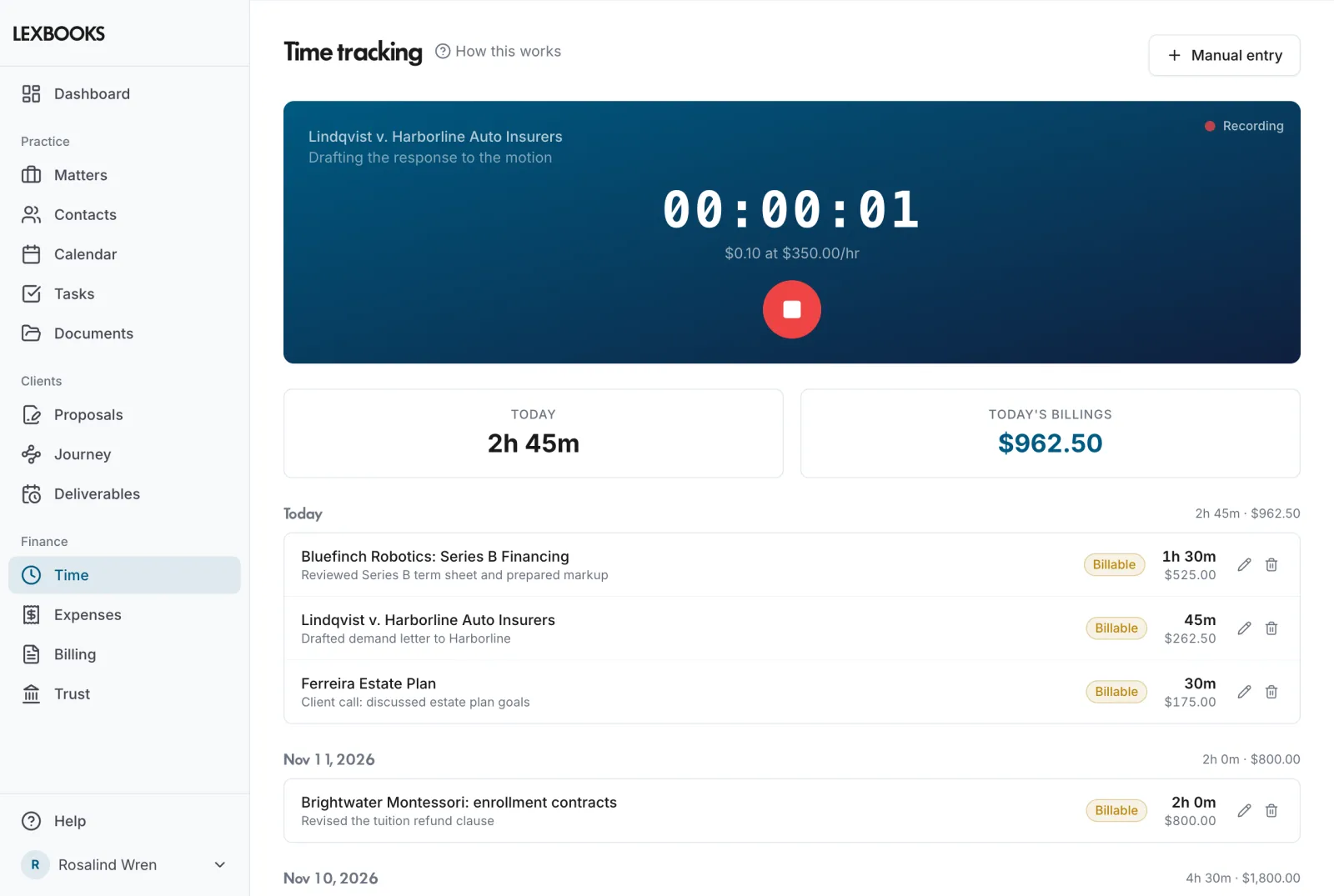
Record time with the timer
- Click Time in the left-hand menu.
- Click Start timer.
- Choose the matter. You can type part of its name in the search box.
- Type what you are working on in Description. Check the Hourly rate.
- Click Start timer.
- When you finish, click the red square button on the running timer to stop it.
Record time after the fact
- Click Time in the left-hand menu.
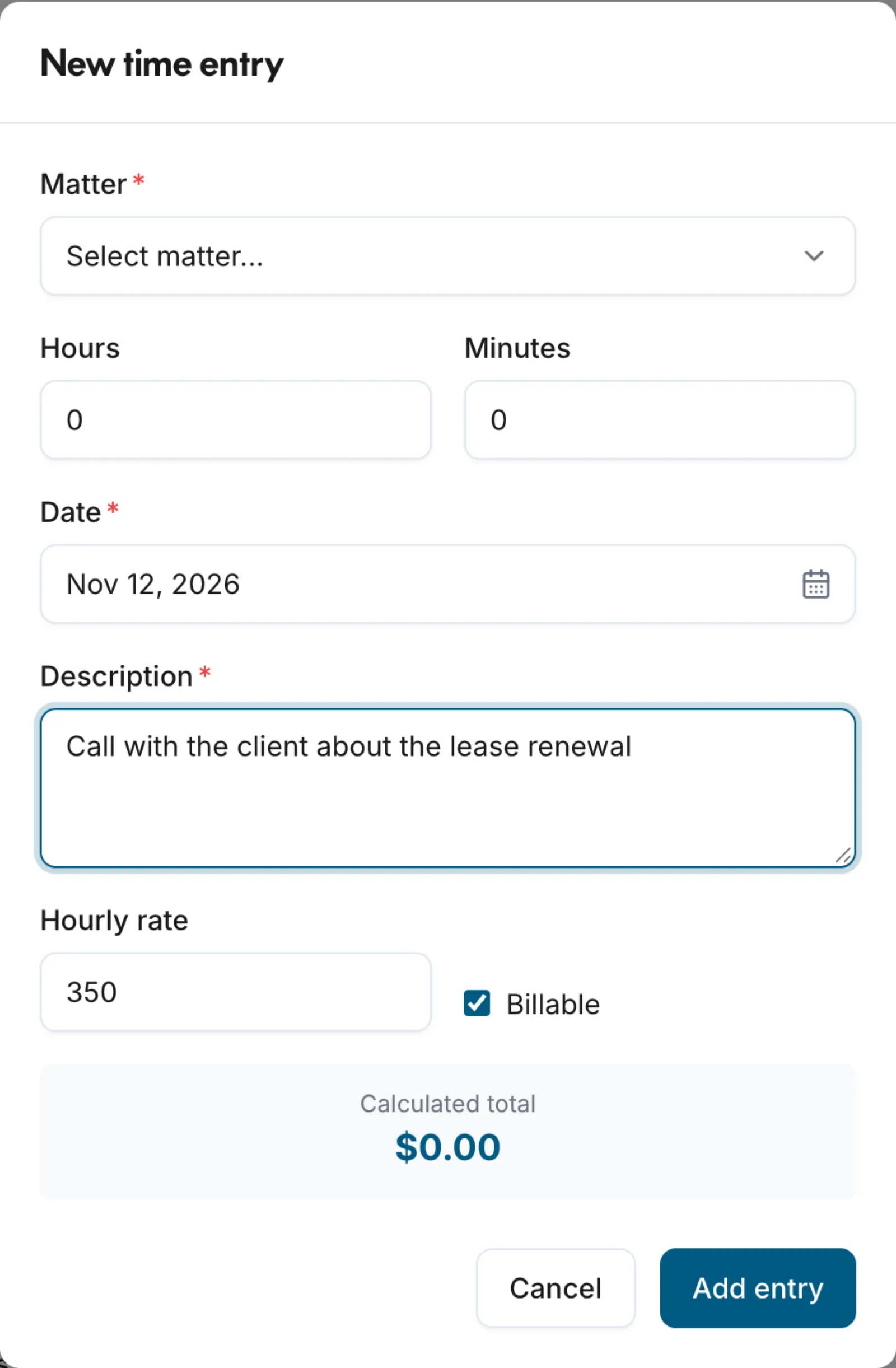
- Click Manual entry.
- Choose the Matter.
- Type the time in Hours and Minutes, and check the Date.
- Describe the work in Description, as you want the client to read it on the invoice.
- Leave Billable ticked if the client pays for this time.
- Click Add entry.
You can also click Log time on the Time tab of a matter's page.
On a phone
A Log time button sits at the bottom of every screen. Tap it, choose the matter, set the time with the minus and plus buttons or the quick choices (6 min, 15 min, 30 min, 1 h), say in a few words what you did, and tap Save.
Record an expense
- Click Expenses in the left-hand menu.
- Click Add expense.
- Choose the Matter, type the Amount, and choose the Category, for example Filing Fee or Travel.
- Describe it in Description and check the Date.
- Leave Billable to client ticked if the client repays it.
- Click Add expense.
What happens next
Billable time and expenses wait on the matter as “unbilled” until you make an invoice. Then they are marked Billed and cannot be changed. See Make and send an invoice.
If your firm has AI turned on, the More actions button (three dots) on the Time page offers Polish narratives, which suggests clearer wording for your draft entries. See AI on a matter.
If something looks wrong
- The matter is not in the list. The matter is archived. Open the matter, click Edit, choose another Status and click Save changes.
- You cannot edit an entry. It is already on an invoice (it shows Billed). To change it, void the invoice first.
- The rate is not the one you expected. Change it on the entry, or change your usual rate in Settings (see Set your hourly rate).