The matter that opens by itself
A matter is the file for one piece of work for a client. Your time, expenses, documents and invoices all belong to a matter.
When a client signs, LexBooks can open the matter for you. Whether it does depends on the fee.
A flat fee, with pay on acceptance on
When a client signs a flat-fee letter and Pay on acceptance is on in Settings, LexBooks does three things at the same moment:
- It opens a matter for the client, with the letter's title.
- It makes the invoice for the flat fee, or for the deposit if there is one, and marks it as sent.
- It shows the client the invoice on the signing page, with a Pay now button if your firm connected Stripe.
You see it on the letter's page: a blue box says which invoice was made and how much is due, and a green box says “The matter was opened when the client accepted.” with the link View matter. The new matter is also in the Matters list.
Every other letter: convert it yourself
For hourly work, a subscription, or a flat fee while pay on acceptance is off, LexBooks does not open the matter by itself. You open it in one click:
- Click Proposals in the left-hand menu.
- Click the accepted letter.
- Click Convert to matter.
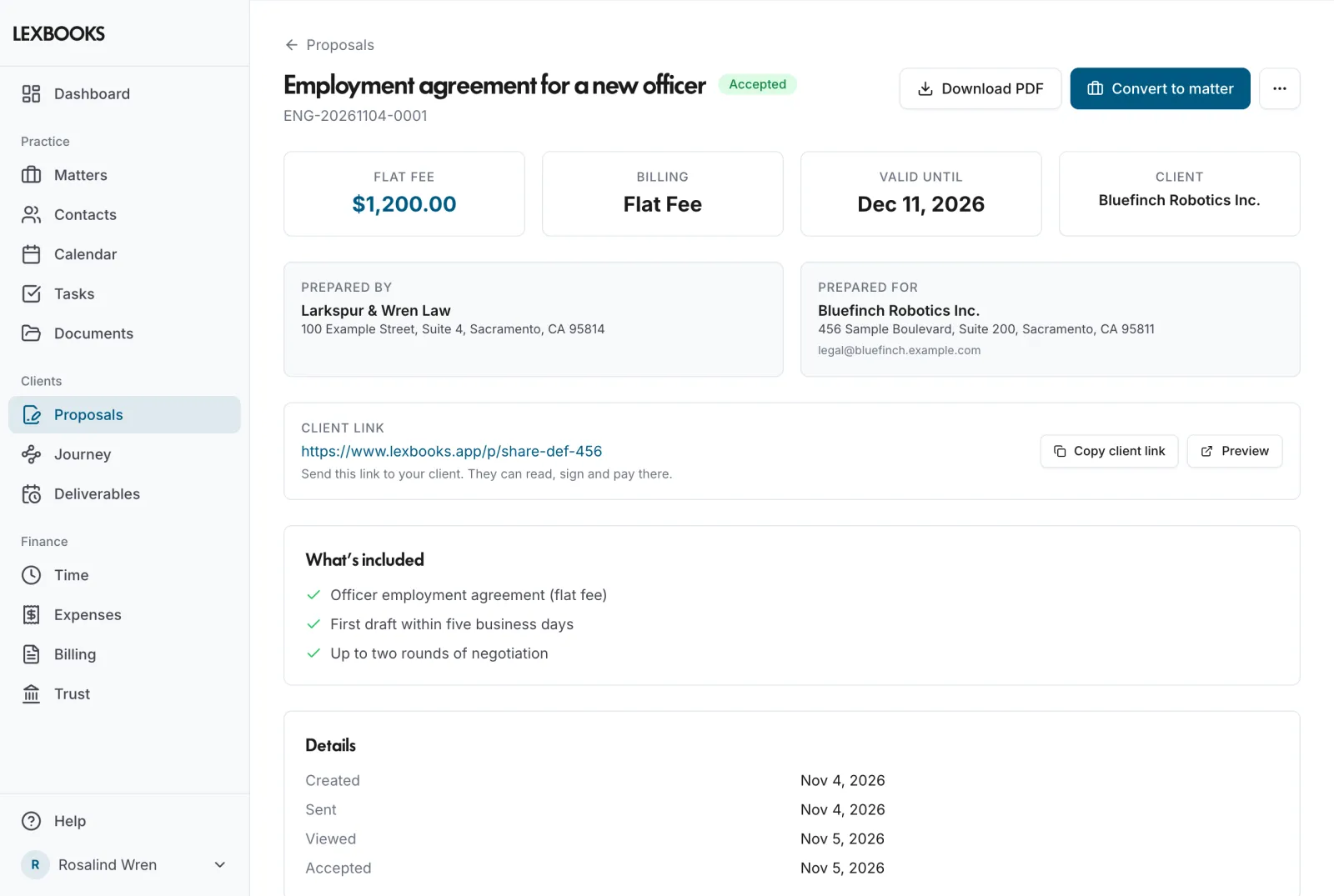
LexBooks opens the matter for the client and takes you to its page. Its description says which letter it came from. For hourly work, the matter uses the rate agreed in the letter. LexBooks makes no invoice at this point.
The balance of a flat fee
If the flat fee had a deposit, LexBooks never invoices the balance by itself. When the work is delivered:
- Open the letter.
- In the card Deposit and balance, click Invoice the balance.
LexBooks makes a draft invoice for the balance on the matter. You check it and send it, as in Make and send an invoice.
What happens next
Open the matter to record time and expenses and to keep its documents.
If something looks wrong
- No matter opened for a flat fee. Check that Pay on acceptance is ticked in Settings, in the card Online payments (Stripe). While it is off, use Convert to matter.
- A client signed a flat fee with a deposit, but no deposit invoice was made. Pay on acceptance was off when the client signed, and the card Deposit and balance on the letter says so. Click Convert to matter, then click New invoice in that card to make the deposit invoice on the matter.
- There is no Convert to matter button. The letter is not accepted yet, or its matter already exists. Look for the green box with View matter.