What the client sees and how they sign
Your client opens the link you sent. They do not need an account or a password. They see your letter on your own letterhead, with your logo, name and address. LexBooks appears only in small print at the foot of the page.
What the client does
- The client opens the link. The page shows the letter or proposal, its fee and what is included, and the full terms.
- If they want, they type a note to you in Add a note (optional)....
- They click Sign engagement letter (for a letter) or Accept proposal (for a proposal).
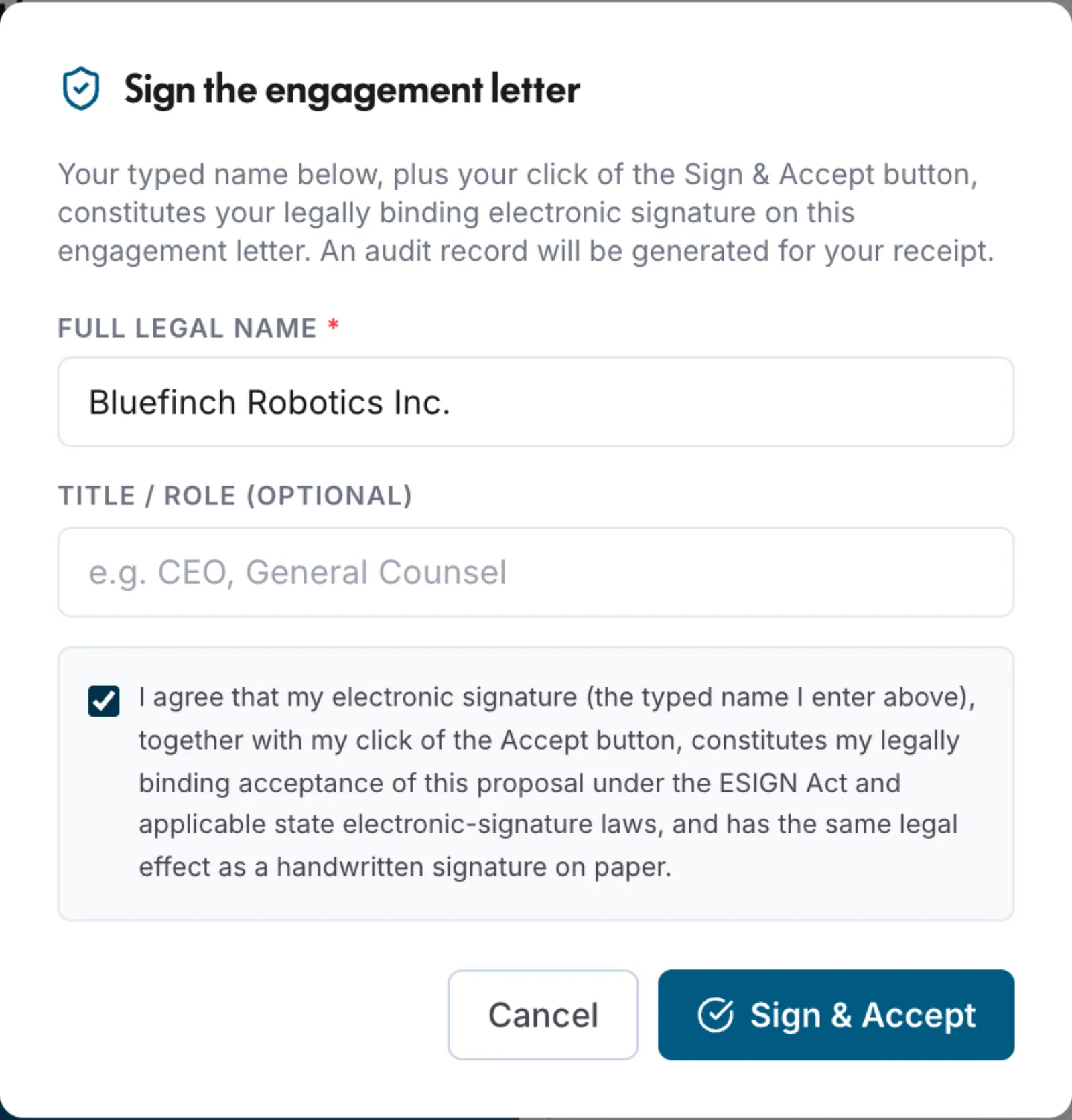
- A window opens. They check or type their full legal name in Full legal name. They may add their title in Title / role (optional). If they sign for a company, the window names the company.
- They tick the box that confirms that their typed name and their click are their electronic signature.
- They click Sign & Accept.
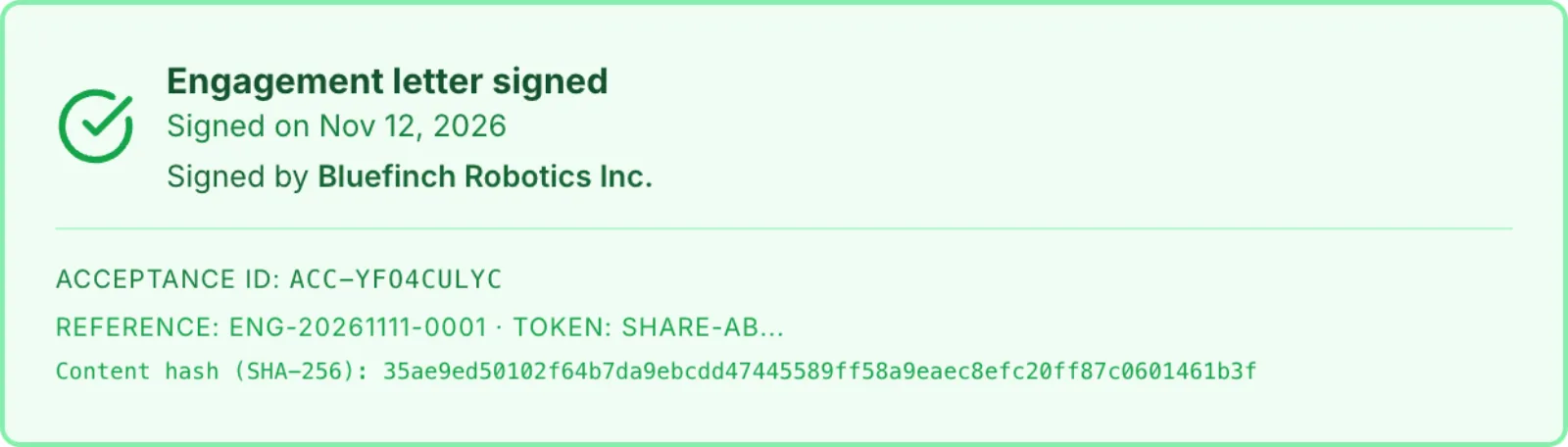
The page then shows a green stamp with the date, the name of the signer and an acceptance number. The client can click Download signed copy to keep a PDF. The PDF ends with an acceptance certificate: the date and time, the name, the browser used, and a fingerprint of the text that proves it has not changed since.
If the fee is a flat fee and your firm uses pay on acceptance, the page tells the client that the invoice comes at once, and shows it right after signing. With Stripe connected there is a Pay now button; see Choose the fee. When pay on acceptance is off, the page does not mention an invoice.
If the client says no
The client can click Decline instead. LexBooks asks once, in a window titled Decline the engagement letter (or Decline the proposal), that the firm will be told and the letter can no longer be signed from that page. The client clicks Decline again to confirm, or Cancel to go back. The page then shows that the letter was declined. Their note, if they wrote one, appears on the letter's page under Details.
What you see
Open Proposals and click the letter. Its status shows Accepted (or Rejected if the client declined), with the date, under Details. You can download the signed copy with the acceptance certificate by clicking Download PDF.
What happens next
See The matter that opens by itself.
If something looks wrong
- The client sees no button to sign. The letter is still a draft. Open it and click Mark as sent.
- The client says the letter has expired. The letter was valid for a set number of days. Open it, click More actions (three dots), choose Duplicate, and send the new version with a new date.
- The client says the link is not valid. Check that the whole link was copied. Copy it again with Copy client link.