Documents
Keep the files of your matters in LexBooks: letters, contracts, evidence, notes and templates. Documents you upload are for your firm only; your clients do not see them.
Upload a document
- Click Documents in the left-hand menu.
- Click Upload.
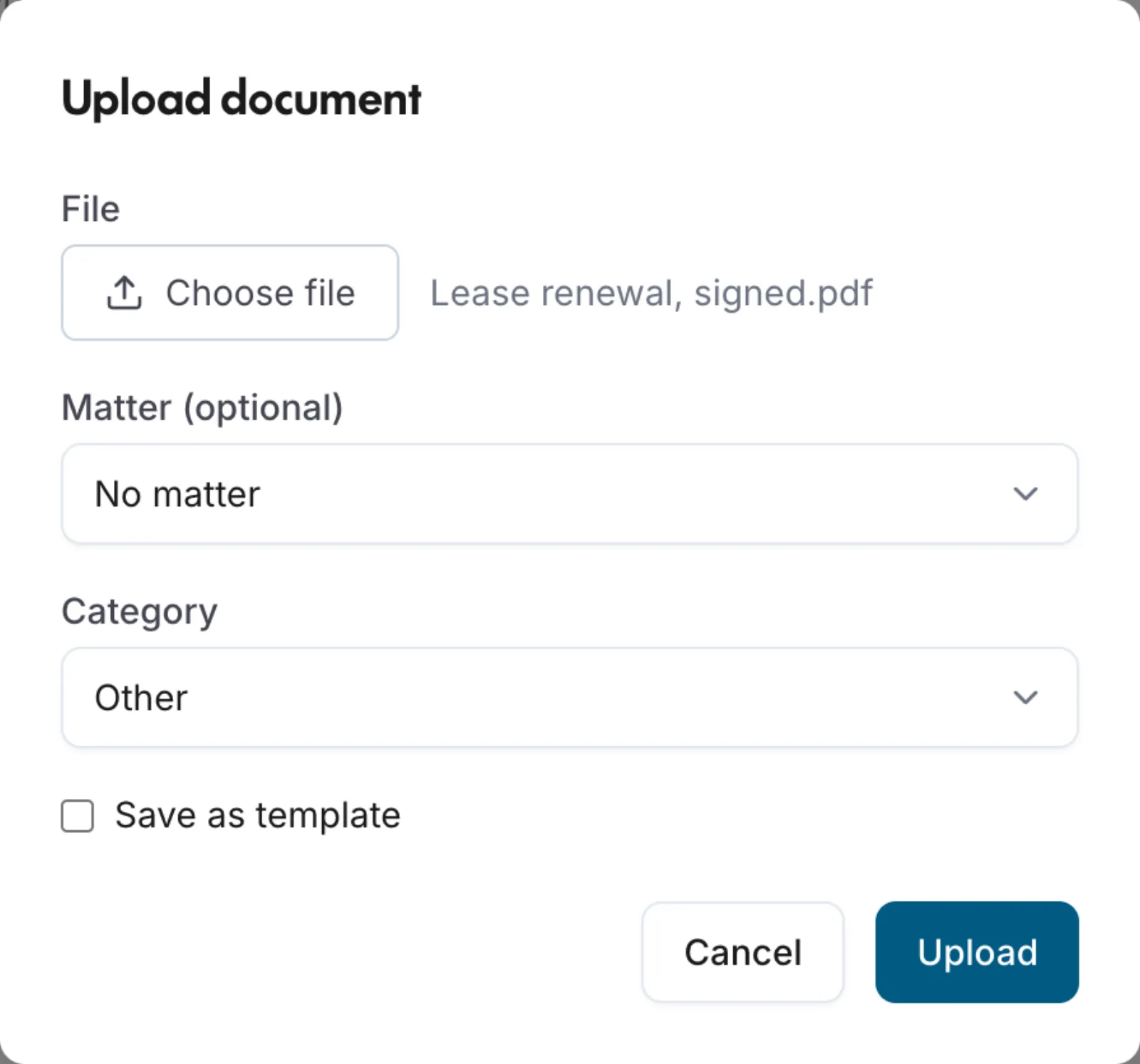
- Click Choose file and pick the file on your computer.
- Choose the matter in Matter (optional), so the document appears on that matter.
- Choose the Category, for example Contract or Correspondence. It starts at Other.
- Tick Save as template if you want to reuse the document for other matters.
- Click Upload.
Find and open a document
On the Documents page, type part of the name in the search box, or click a category such as Contracts to filter the list. Click the download button on a document's line to open it.
The Documents tab of a matter's page lists the documents of that matter. Click Open documents to go to the Documents page.
What happens next
The document is stored for your firm and included in the export. If your firm uses the AI document tools, a document on a matter can be prepared for review (see Review a document with a skill).
Documents your clients upload through their portal, and deliverables you sign and publish, are the only documents your clients see.
If something looks wrong
- The document is not on the matter's tab. It was uploaded without a matter. Delete it and upload it again with the matter chosen.
- A document is in the wrong category. Delete it and upload it again with the right category.
- “The file could not be downloaded. Try again in a moment.” Check that your browser allows downloads from www.lexbooks.app, then try again.