Tasks, the calendar and the calendar feed
The calendar holds your dates: court dates, deadlines and meetings. Tasks are the things you need to do, each with a priority and, if you want, a due date. LexBooks does not work out deadlines from court rules: the calendar holds the dates you enter.
Add a date to the calendar
- Click Calendar in the left-hand menu.
- Click New event.
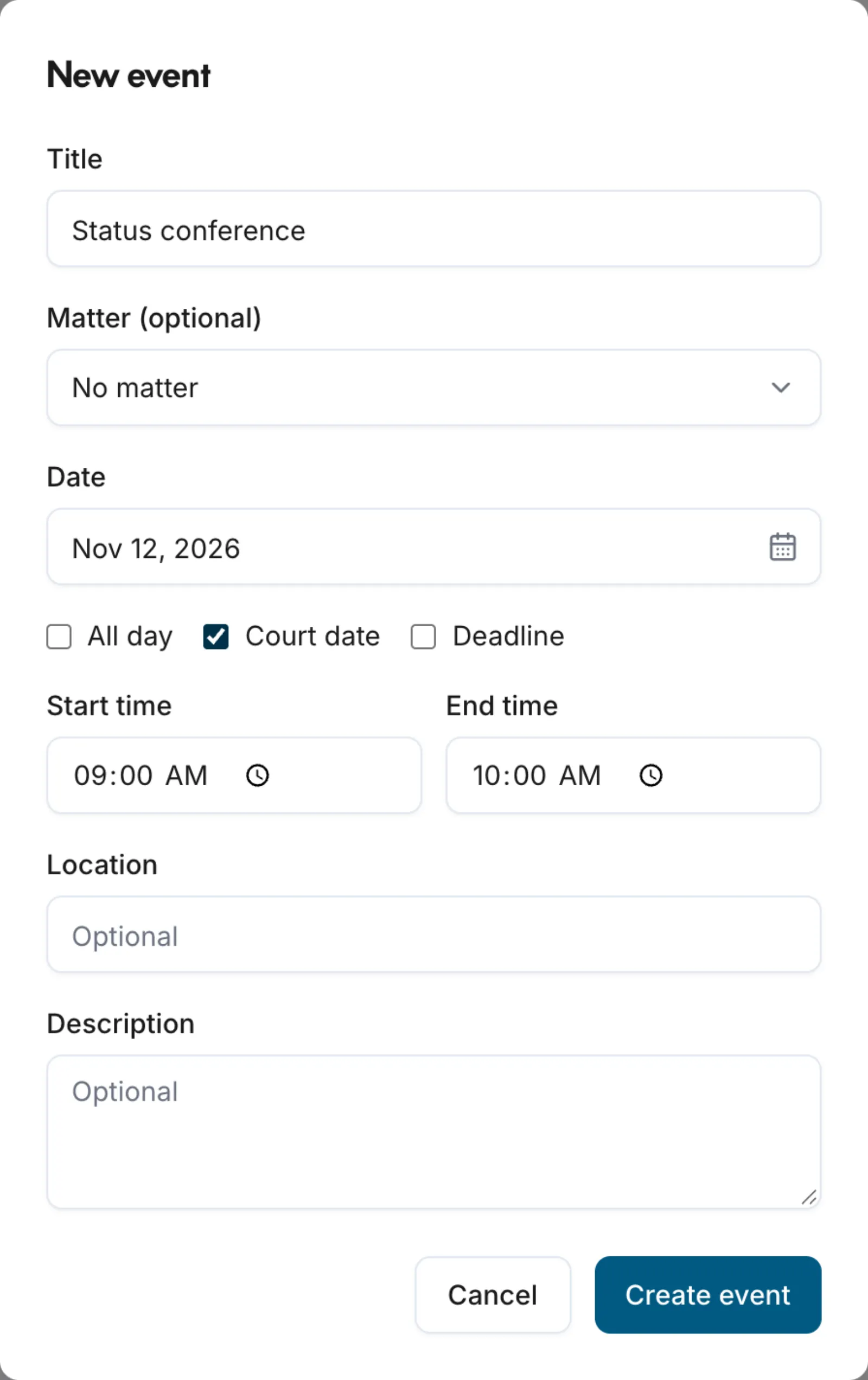
- Type a Title, for example “Status conference”.
- Choose the matter in Matter (optional) if it belongs to one.
- Choose the Date. Untick All day to give a Start time and End time.
- Tick Court date or Deadline if it is one. These dates appear on the dashboard under Needs your attention in the week before.
- Add a Location and a Description if you want.
- Click Create event.
Add a task
- Click Tasks in the left-hand menu.
- Click New task.
- Type what needs to be done in Title.
- Choose the matter in Matter (optional), a Priority and, if there is one, a Due date.
- Click Create task.
To mark a task as done, click the circle at the start of its line. Click the circle again to reopen it. To change a task, click its line.
See your dates in your own calendar (the calendar feed)
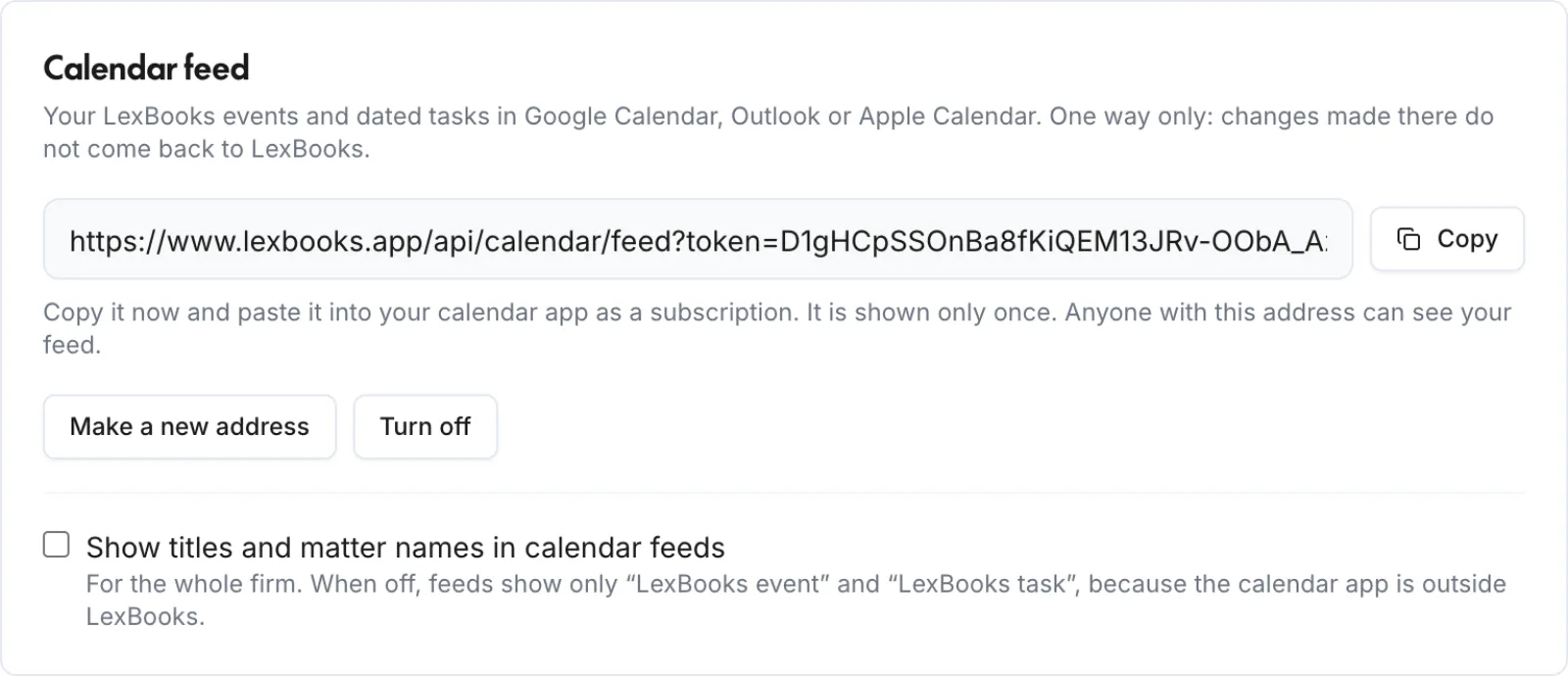
The calendar feed shows your LexBooks events and dated tasks in Google Calendar, Outlook or Apple Calendar. It works one way only: changes you make there do not come back to LexBooks.
- On the Calendar page, click Calendar feed at the top. (It opens the card Calendar feed in Settings.)
- Find the card Calendar feed.
- Click Make my feed address.
- Click Copy. The address is shown only once, so paste it at once.
- In your calendar app, add a calendar “from URL” or “by subscription”, and paste the address. (In Google Calendar: Other calendars, From URL. In Outlook: Add calendar, Subscribe from web. In Apple Calendar: File, New Calendar Subscription.)
Anyone with the address can see your feed, so keep it private. To stop a feed, click Turn off. To get a new address, click Make a new address; the old one stops working.
By default the feed shows only “LexBooks event” and “LexBooks task”, because your calendar app is outside LexBooks. An administrator can tick Show titles and matter names in calendar feeds to show the real titles for the whole firm.
What happens next
Court dates and deadlines in the next seven days, and tasks that are due or late, appear on the dashboard under Needs your attention. Your calendar app checks the feed for changes on its own schedule, often every few hours.
If something looks wrong
- Your calendar app shows nothing. Check that you pasted the whole address as a subscription, not as a file to import. Some apps take some hours to fetch it the first time.
- You lost the feed address. It is shown only once. Click Make a new address and add the new one to your calendar app.
- A task you finished is no longer in the list. The list shows open tasks first. Click All or Completed to see finished ones.