Record a payment
When a client pays an invoice by check, bank transfer or any other way outside LexBooks, record the payment so the invoice shows what is still owed.
Steps
- Click Billing in the left-hand menu.
- Click the invoice.
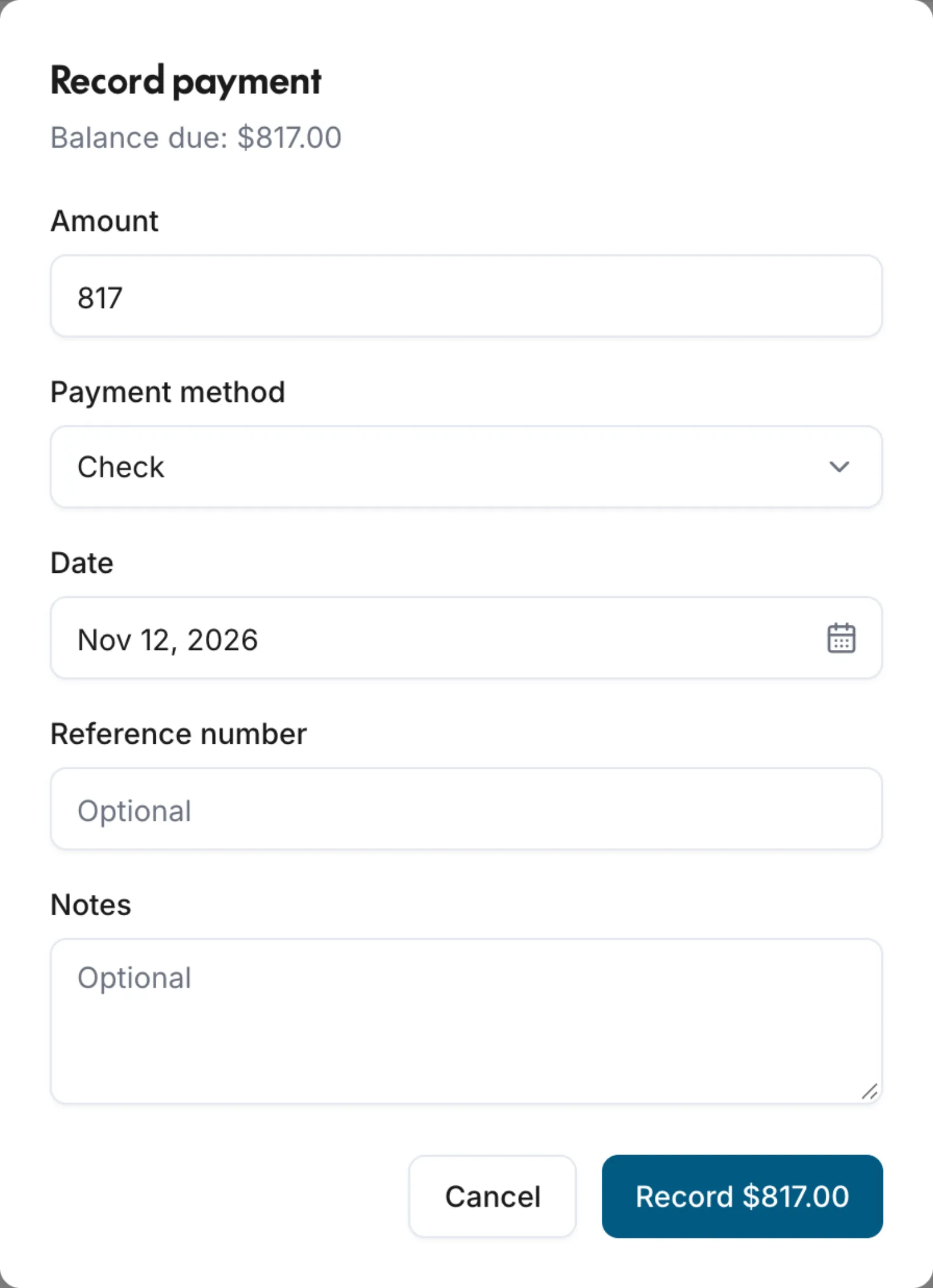
- Click Record payment.
- Check the Amount. LexBooks fills in the balance due now, also after an earlier part payment. For a part payment, type the amount received.
- Choose the Payment method, for example Check or ACH.
- Check the Date, and type the check or transfer number in Reference number if you have one.
- Click Record. The button shows the amount, for example “Record $1,200.00”.
What happens next
The invoice shows Paid, or Partially Paid with the balance still due. The payment is listed under Payments on the invoice's page, and counted on the dashboard.
Payments a client makes online through your firm's Stripe account are recorded by themselves; you do not record them again.
If something looks wrong
- The Record button stays grey. The window says why under Amount: the amount is more than the balance due, or is zero. Type an amount greater than zero and no larger than the balance due.
- “The payment could not be recorded. Try again.” Nothing was saved. Click the button again in a moment.
- There is no Record payment button. The invoice is still a draft or approved but not sent. Send it first (see Make and send an invoice), or it is already paid.
- The client paid online but the invoice still shows Sent. A bank payment through Stripe can take a few days to confirm. The invoice changes to Paid once Stripe confirms it.