Make and send an invoice
An invoice gathers the unbilled time and expenses of a matter, with your letterhead and how to pay. LexBooks makes the PDF and can e-mail it to the client for you, or you can send it from your own e-mail.
Make the invoice
- Click Billing in the left-hand menu.
- Click New invoice. (Or open the matter and click Create invoice.)
- Choose the matter in Select matter. LexBooks shows how much unbilled time and how many expenses it holds.
- Click Continue.
- Check the Line items. LexBooks has filled them in from the unbilled time and expenses, or from the price agreed in the client's letter. Change any line, add one with Add item, or remove one with its bin button.
- Check Payment terms (days). The usual is 30.
- Leave Tax Rate (%) at 0 unless you bill taxable goods. Legal services are not subject to California sales tax.
- Add any note for the client in Notes.
- Click Create invoice.
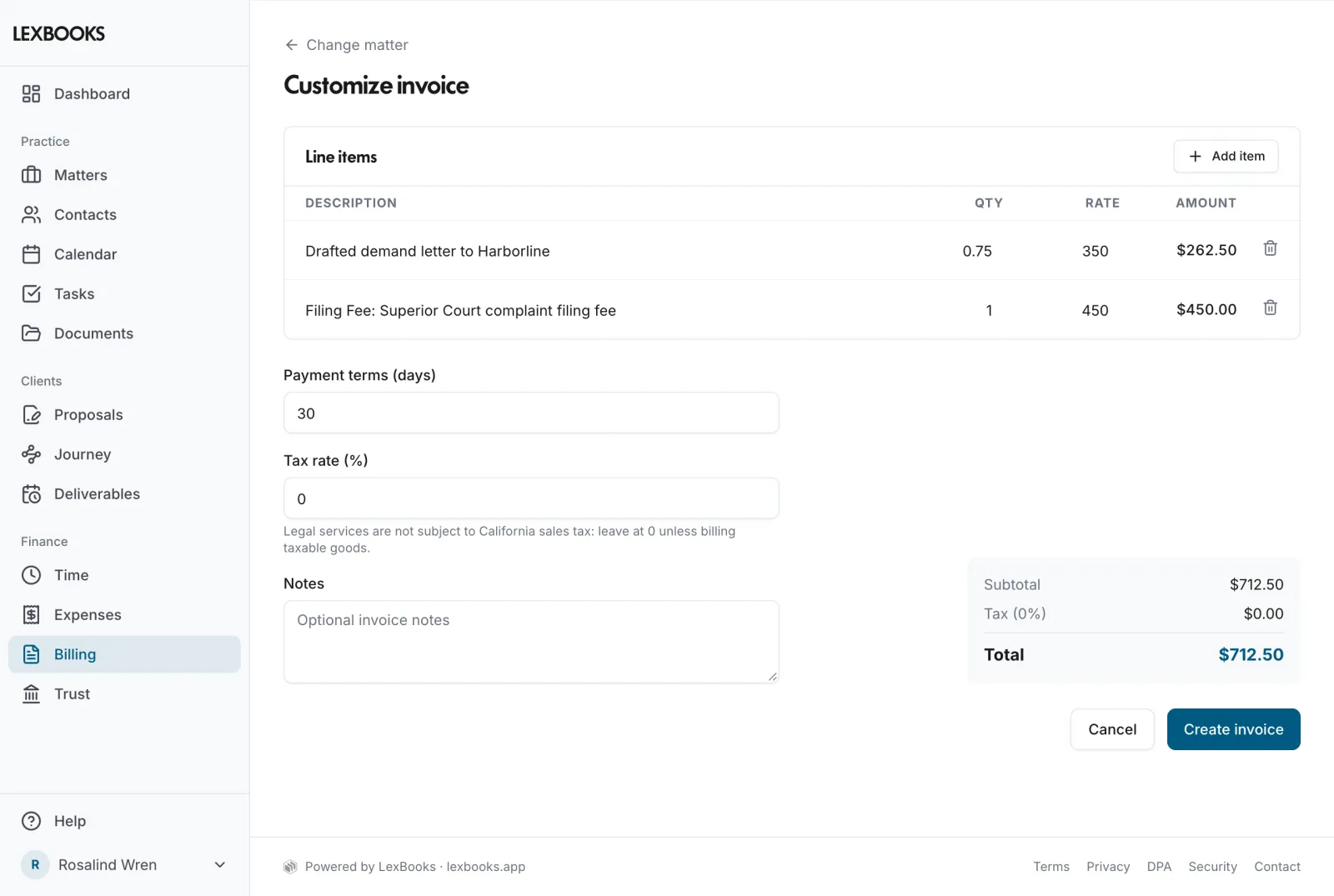
The new invoice is a Draft. Its time and expenses are now marked as billed.
Approve and send it
- On the invoice's page, click Preview to read it as the client will.
- Click Approve.
- Click Send to client. A window opens.
- To have LexBooks e-mail the invoice, check the address next to To and click Send. LexBooks attaches the PDF, adds the pay link and sends reminders if it is not paid. See Send invoices by e-mail, and the reminders.
- To send it yourself instead, click Or send it yourself. The window shows three steps.
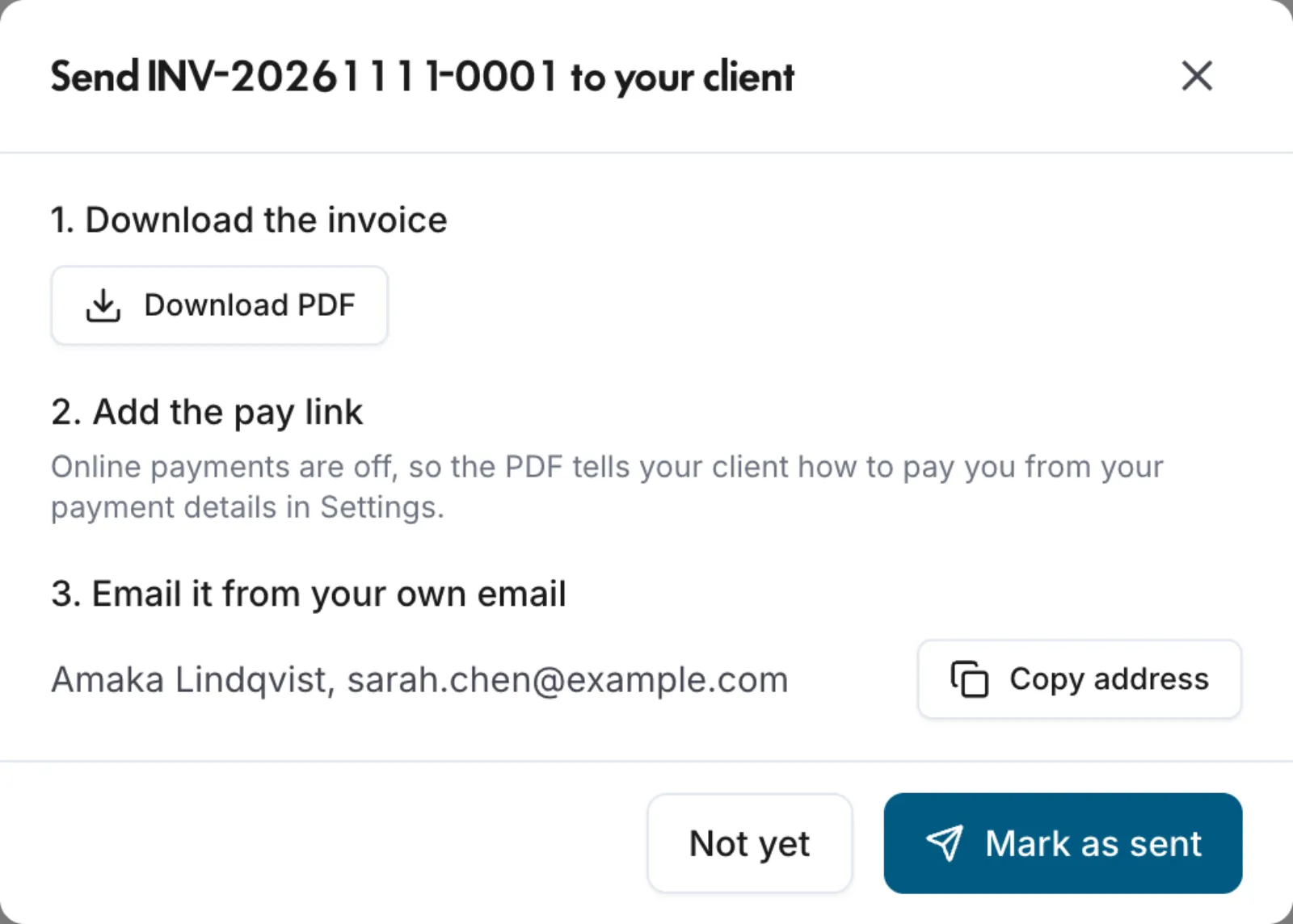
- Click Download PDF to save the invoice on your computer.
- If your firm takes payment online, click Create pay link (or Copy link if the link exists) and keep it for your e-mail.
- Click Copy address to copy the client's e-mail address. Write to the client from your own e-mail, attach the PDF and paste the pay link if you have one.
- Back in LexBooks, click Mark as sent.
What happens next
The invoice shows Sent. When the client pays, record the payment. If the client pays online through your Stripe account, LexBooks records it for you.
An invoice that is sent and still unpaid after its due date counts as overdue. It is counted in the Overdue figure on the Billing page, shown with the Overdue filter, and listed on the dashboard under Needs your attention, with a line that says whether reminders are running.
If something looks wrong
- “Some of this time or these expenses are already on another invoice.” Someone made an invoice for the same work. Choose the matter again to see what is still unbilled.
- The invoice has a mistake after you approved it. Open it, click More actions and choose Void invoice. Its time and expenses can then be billed again on a new invoice. A draft can simply be deleted.
- The PDF has no payment details. Add them in Settings, under Payment details (see Your firm details).