Your firm details, letterhead and logo
The name, address and logo of your firm print at the top of every proposal, engagement letter and invoice you send. This top part is called the letterhead. Enter it once and LexBooks uses it everywhere.
Only a firm administrator can change these details. The person who signs up is an administrator.
Steps
- Click Settings in the account menu at the bottom of the left-hand menu. (On a phone, tap More, then Firm settings.)
- Find the card Firm profile.
- Type the name of your firm in Firm name, exactly as it should appear on your letters.
- Type the full postal address in Address.
- Type your bar and state in Bar / state.
- If your firm has a registration number, type it in Firm registration number (optional). If your firm is a California law corporation, tick We are a California law corporation: the letterhead then reads “Law Corporation No.” before the number.
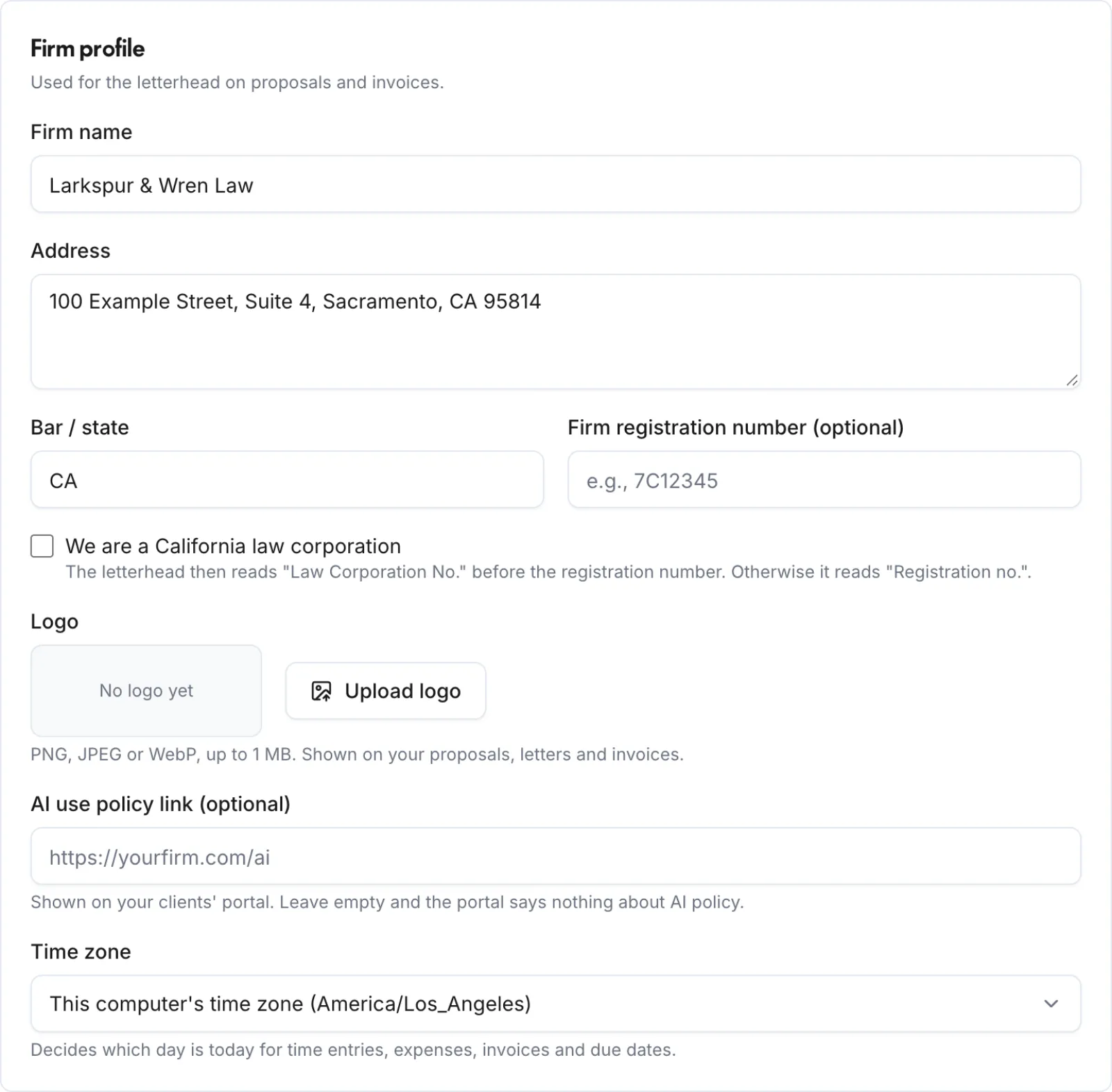
- Check Time zone. It decides which day is “today” for time entries, expenses, invoices and due dates.
- Scroll down and click Save changes.
Add your logo
- In the same card, under Logo, click Upload logo.
- Choose the file on your computer. It must be a PNG, JPEG or WebP picture of up to 1 MB.
The logo is saved at once; you do not need to click Save changes for it. To change it later, click Replace logo. To take it off, click Remove.
How your clients pay you
Under Payment details, write how clients can pay you in Payment instructions, for example by check, bank transfer or Zelle. This text prints in the “How to pay” part of every invoice. Do not give your client trust (IOLTA) account here: invoices are paid into your operating account.
If you have a page where clients pay online, paste its address in Online payment link (optional). A “Pay online” link then appears on your invoices. To take payment on acceptance through your own Stripe account, see Choose the fee.
Click Save changes when you are done.
What happens next
Your next proposal, letter and invoice show the new letterhead. Letters already sent keep the details they had when you sent them. Next, set your hourly rate.
If something looks wrong
- The fields are greyed out and a line says only an administrator can change them. Ask an administrator of your firm to make the change, or to make you an administrator (see Invite a colleague and choose a role).
- The logo is refused. Check that the file is PNG, JPEG or WebP and no larger than 1 MB. A logo saved from a phone photo is often too large; save a smaller copy and try again.
- An old letter still shows the old address. This is on purpose. A sent letter stays exactly as the client saw it.