Turn on two-step sign-in
Two-step sign-in protects your account. After your password, LexBooks asks for a six-digit code that an app on your phone shows. Someone who learns your password still cannot get in without your phone.
Firm administrators must use two-step sign-in. LexBooks gives an administrator 30 days from the day the firm was created to set it up. For other people in the firm it is optional, unless an administrator makes it required.
Before you start
Install an authenticator app on your phone, for example Google Authenticator, Microsoft Authenticator, 1Password or Authy. They are free.
Steps
- Click Settings in the account menu at the bottom of the left-hand menu. (On a phone, tap More, then Firm settings.)
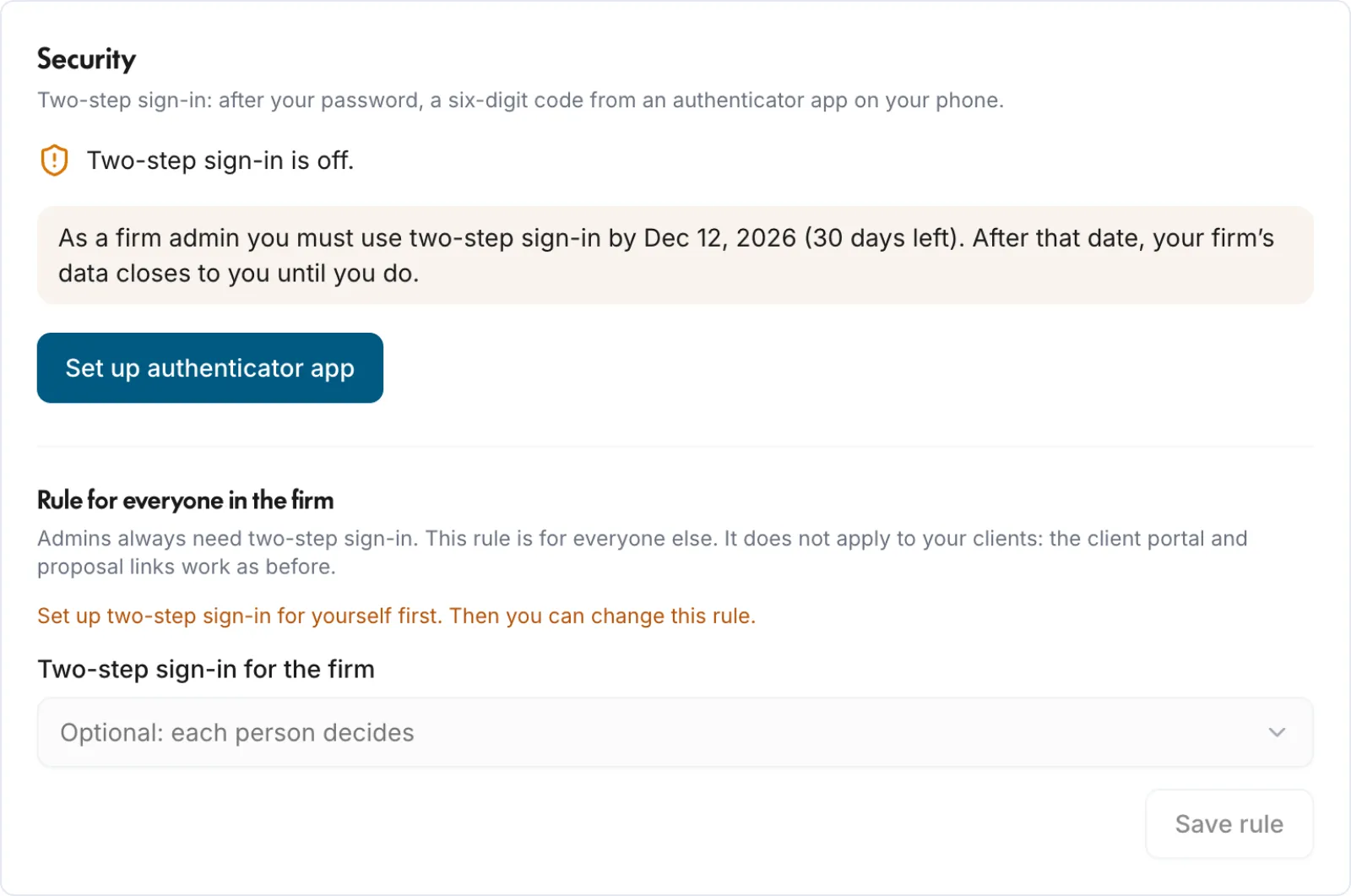
- Scroll to the card Security.
- Click Set up authenticator app.
- On your phone, open the authenticator app and add a new account.
- Point the phone's camera at the square code that LexBooks shows. If you cannot scan it, type the key shown under the code into the app instead.
- The app now shows a six-digit code for LexBooks. Type it in Code from the app.
- Click Confirm.
- LexBooks shows ten recovery codes. Click Copy codes and keep them somewhere safe and apart from your phone, such as a password manager or a printed copy in the office.
- Tick I have saved these recovery codes.
- Click Done.
What happens next
The next time you sign in, LexBooks asks for Code from the app after your password. Open the app on your phone, type the six digits and click Continue.
Each recovery code works once, in place of a code from the app, if you lose your phone. After you use one, LexBooks asks you to set up the app again. The Security card shows how many unused codes you have. To get a fresh set of ten, click Make new recovery codes, type the code from your app and click Make new codes; your old codes stop working. If you set up two-step sign-in when LexBooks gave only two codes, the card reminds you to make new ones to have ten.
For administrators: the rule for everyone in the firm
Once you use two-step sign-in yourself, the Security card shows Rule for everyone in the firm. Choose one option in Two-step sign-in for the firm and click Save rule:
- Optional: each person decides;
- Required for everyone, from now;
- Required for everyone, from a date.
The rule does not apply to your clients. The pages your clients open from a link work as before.
The card Users, under the Security card, shows who uses two-step sign-in. If a colleague loses their phone and their codes, click Reset two-step sign-in beside their name, give a reason and click Reset. They set it up again at their next sign-in.
If something looks wrong
- The code is refused. The code changes every 30 seconds. Type the code the app shows now. If it is still refused, check that your phone's clock is set automatically.
- You lost your phone. On the sign-in screen, click Lost your phone? Use a recovery code and type one of your recovery codes. Without a code, ask an administrator of your firm to reset your two-step sign-in. If you are the only administrator, the recovery codes are the only way back in, so keep them safe.
- A notice says you must set up two-step sign-in. You are an administrator and your 30 days are running out or have passed. Click Set it up in the notice and follow the steps above. Your data is safe and stays where it is.