Invite a colleague and choose a role
Everyone in your firm can use LexBooks under the firm's plan, at no extra cost per person. Each person has their own sign-in. Everything they record belongs to the firm.
The two roles
- Member: does the daily work: contacts, matters, letters, time, expenses, invoices, tasks and documents.
- Administrator: everything a member does, plus the firm's settings. Only an administrator can invite and remove people, change roles, change the firm profile, payment details and notices, turn on online payments, AI, the conflict check and the privacy practice tools, set the firm's two-step sign-in rule, subscribe to the plan, download the export and delete the firm's workspace.
Administrators must use two-step sign-in.
Invite a colleague
You must be an administrator.
- Click Settings in the account menu at the bottom of the left-hand menu.
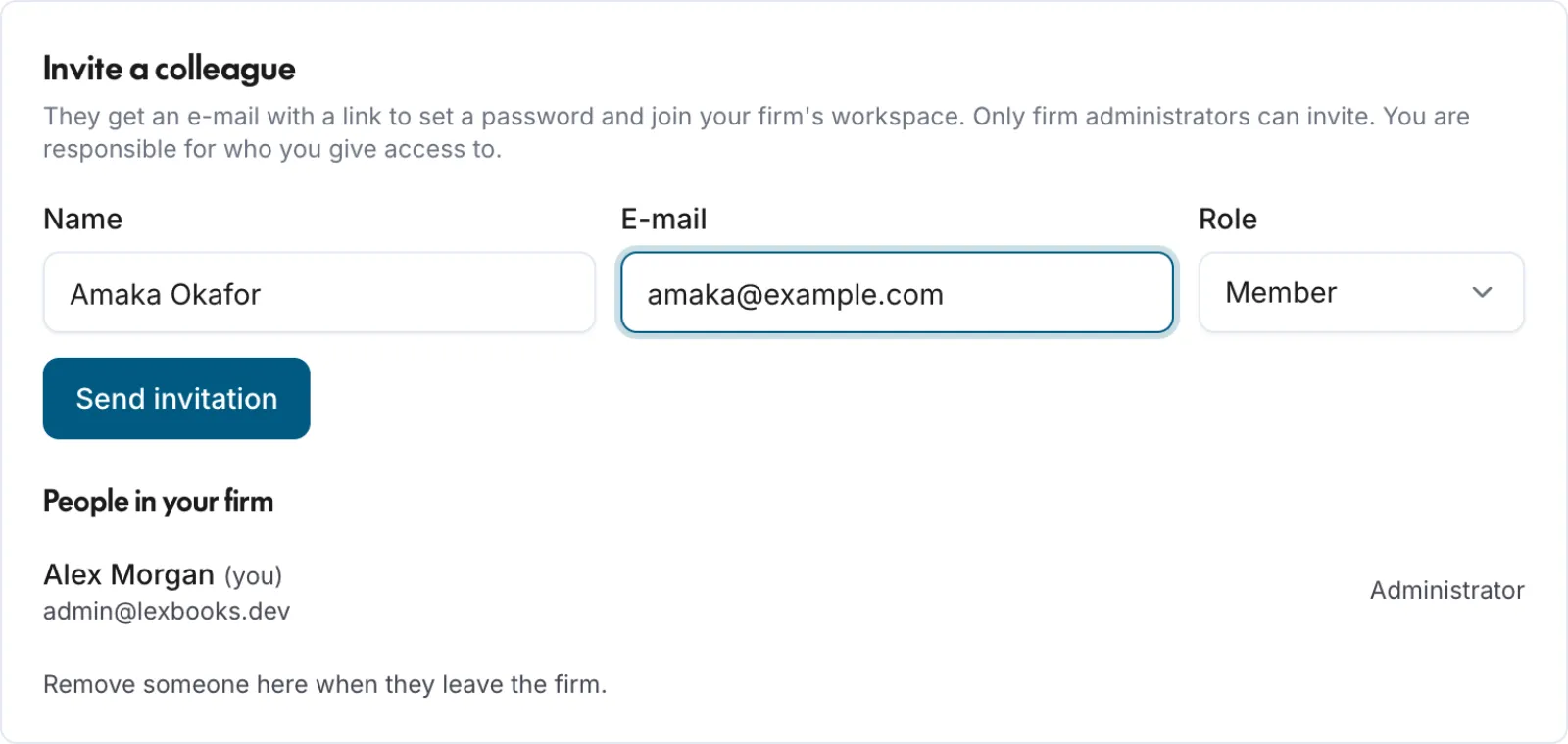
- Find the card Invite a colleague.
- Type their name in Name and their e-mail address in E-mail.
- Choose Member or Administrator in Role.
- Click Send invitation.
What your colleague does
- They open the e-mail from LexBooks and click the link.
- They click Accept the invitation.
- They type their name, choose a password, repeat it, and click Join the firm.
What happens next
Your colleague appears under People in your firm. Until they accept, they are listed under Invitations not yet accepted, where you can click Resend or Cancel invitation.
To change someone's role, choose a new role beside their name. When someone leaves the firm, click Remove beside their name. Their access ends at once; everything they recorded stays with the firm.
If something looks wrong
- There is no Invite a colleague card. You are not an administrator. Ask an administrator of your firm.
- Your colleague's link says it has expired. Click Resend beside their invitation.
- “Your firm needs at least one administrator.” Make someone else an administrator first, then change your own role.