The client journey and deliverables
Two pages under Clients in the left-hand menu handle work that arrives or leaves on its own schedule. Deliverables is in every firm's menu; Journey appears only for a firm whose online intake is connected.
Journey: new clients from an online intake
The Journey page receives new clients who come through an online intake form on a law firm's website, when that form is connected to LexBooks. The connection is set up for each installation. If your firm has no intake form connected, Journey is not in your menu, and you need nothing from it: everything else in LexBooks works without it.
When a request arrives, the page asks you for two decisions, and the client sees a status page until you decide:
- Step 1: Conflicts certification. LexBooks lists possible conflicts with your contacts and matters. Click Clear conflicts and certify if there is none, Needs review to come back to it, or Decline to turn the request down.
- Step 2: Engagement approval & countersignature. Check the letter (click Preview, or Edit letter to change it), give the fee if the service has no published price, type your name in Countersigner, and click Approve, countersign and issue for e-signature. The client then signs online.
After the client signs and pays, click the button that records the payment and then the one that opens the matter and the client's workspace.
Everything on this page is confidential information of a prospective client, whether or not you take the work (California Rule 1.18).
Files that clients upload through their portal appear under Client uploads. Click Mark reviewed once you have read each one.
Deliverables: work you deliver on a schedule
The Deliverables page prepares recurring work, such as a monthly or quarterly report for a client, as a draft on a schedule. You review and sign each draft. Only signed deliverables reach the client's portal.
Add a schedule
- Click Deliverables in the left-hand menu.
- Under Schedules, choose an open Matter.
- Type a Title, for example “Quarterly vendor review”.
- Choose the Kind of deliverable and the Cadence: weekly, monthly or quarterly.
- Click Add schedule.
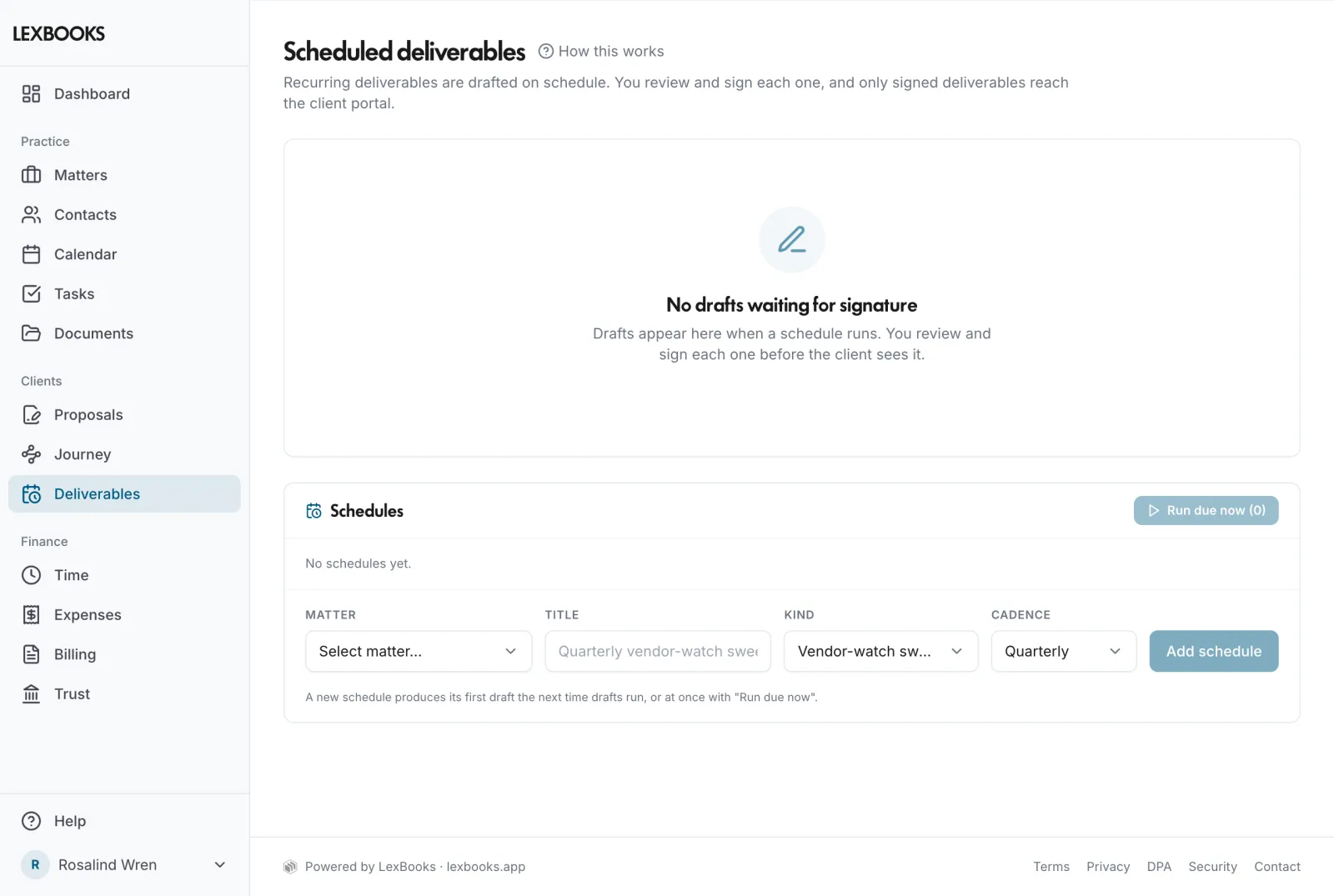
A new schedule makes its first draft the next time drafts run. To make due drafts at once, click Run due now.
Sign a draft
- Each draft appears under Awaiting your signature.
- Click Preview to read it, or Edit draft to change it.
- Type your name in Signer and your title in Title.
- Click Sign & publish to portal. If the draft should not go to the client, click Dismiss (stays internal).
What happens next
A signed deliverable appears in the client's portal, and LexBooks records it on the matter. To stop a schedule for a while, click Pause beside it; click Resume to start it again.
If something looks wrong
- There is no Journey in the menu. No intake form is connected for your firm. This is normal.
- The matter is not in the Deliverables list. Schedules need an open matter. Set the matter's status to Open.
- No draft appeared for a new schedule. Drafts are made when they are due. Click Run due now.