Send an engagement letter or a proposal
LexBooks offers two kinds of document for a new client:
- an engagement letter: the full letter that sets the terms of your work, which the client signs online;
- a proposal: an offer with a price and a list of what is included, which the client accepts online.
You prepare either one in three short steps. Then LexBooks e-mails your client the link in your firm's name, or you copy the link and send it yourself.
Before you start
- It helps to add the client as a contact first. You can also add a new contact from inside the letter.
- Your bar number must be checked before you can send (see Sign up and the bar-number check). You can prepare and save the letter before then.
Step 1: choose where to start
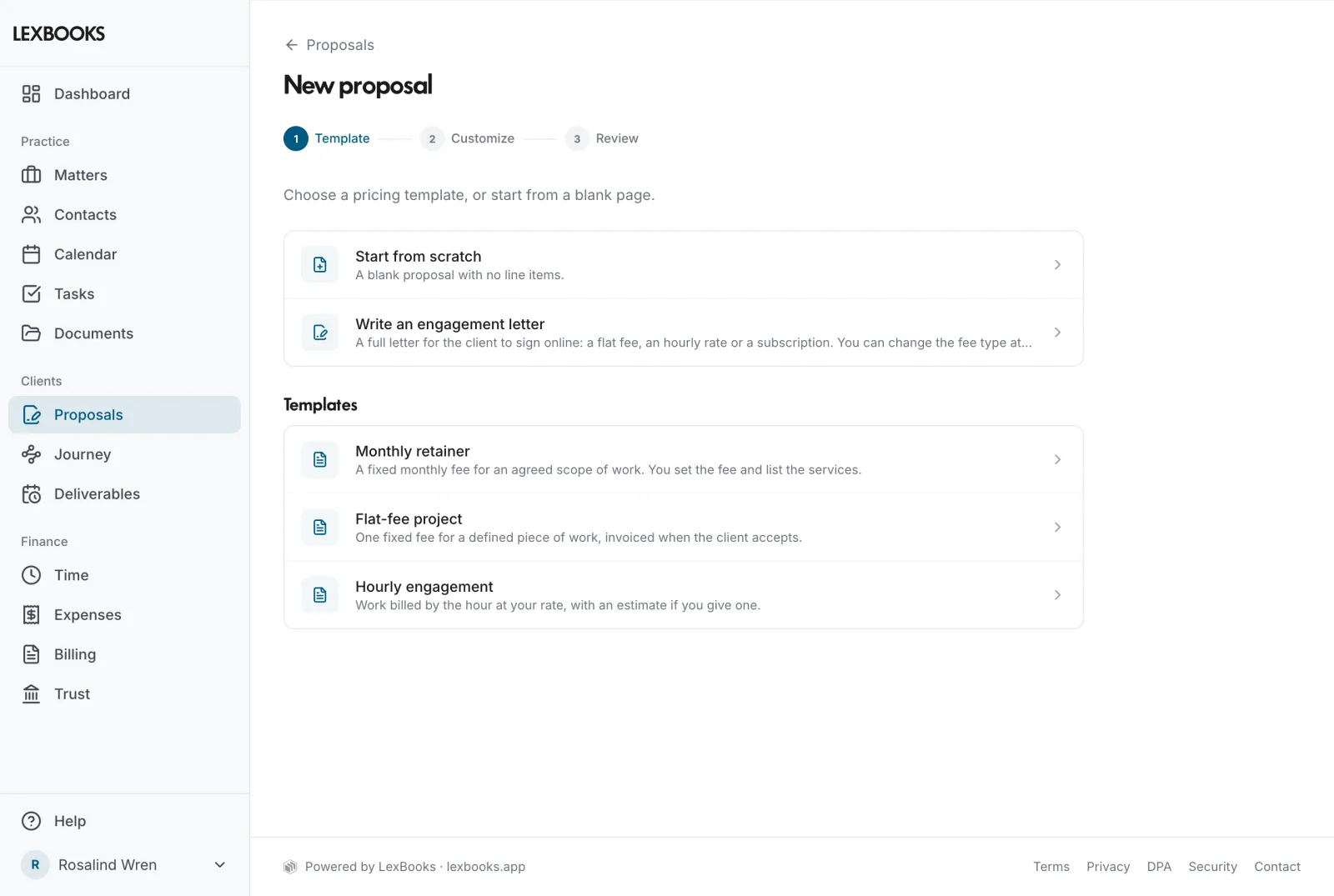
- Click Proposals in the left-hand menu.
- Click New proposal. (You can also open the client's contact page and click New proposal there; the client is then chosen for you.)
- Click Write an engagement letter for a full letter for the client to sign. For a proposal instead, click one of the Templates (Monthly retainer, Flat-fee project or Hourly engagement), which lay out the prices for you, or Start from scratch for a blank proposal.
Step 2: fill in the details
- Choose the client in Contact (for a letter) or Client (for a proposal). If the client is new, click Add a contact under the list, fill in the form and save it: the new contact is chosen for you.
- Type a title in Letter title or Proposal title, for example “Trademark registration”.
- For a letter to a company, type the company in Client (company), and the person who signs for it in Signs for the client.
- Choose the fee in Fee (for a letter) or Billing interval (for a proposal), and fill in the amount. Choose the fee explains each kind of fee.
- Check Valid for (days). The client can accept until that many days after you send it. The usual is 30.
- For a letter, go through Fill in the blanks. The standard letter has a few blanks in square brackets, such as the period for keeping the file and the governing law. For each blank, click Fill in and type the text, or click Delete this paragraph if it does not apply. The Letter preview beside the text shows each blank that is left.
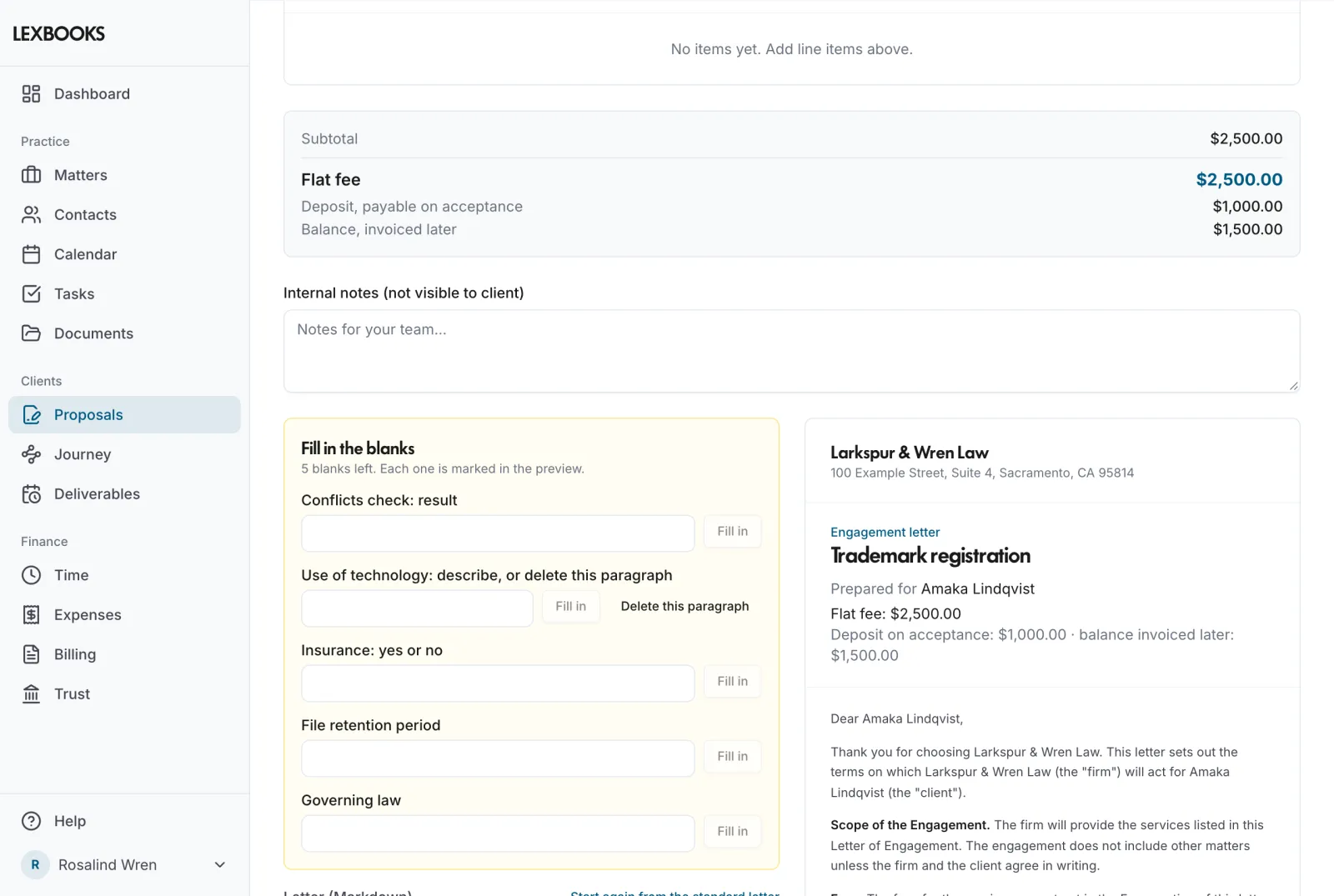
- If you want a note for yourself that the client never sees, use Internal notes (not visible to client).
- Click Review.
Step 3: check and send
- Check the summary: the title, the client, the fee, how long it stays valid, and what happens when the client accepts.
- If something needs changing, click Edit.
- Click Create and mark as sent when it is ready. If you want to finish it later, click Save as draft instead.
- LexBooks opens the page of the letter. In the card Send by e-mail, click Send to client. LexBooks e-mails the link to the client's address, in your firm's name, and replies come to your firm. The e-mail carries the link, not the text of the letter.
- Leave Send reminders before the link expires ticked if you want LexBooks to remind the client. It sends at most two reminders, about a week before the last day and two days before it, during the working day in your firm's time zone. They stop when the client answers, and the client can stop them from a link in each e-mail.
- If you prefer to send the link yourself, click Copy client link in the card Client link and paste it into your own e-mail.

To see the whole letter as your client will see it, click Preview beside the link.
What happens next
The status of the letter changes from Sent to Viewed when the client opens it, and to Accepted when the client signs. If you turned on notices in Settings, the firm receives an e-mail when the client accepts or declines. See What the client sees and how they sign and The matter that opens by itself.
Follow-ups
On the Requests page, click Follow-ups to see the requests still waiting for your reply and the letters with no answer for a week or more. For a letter, click Send a reminder to send the client the standard reminder. For a request you answered outside LexBooks, click I have replied.
Changing a letter after you send it
A sent letter stays exactly as the client saw it, and cannot be edited. To change it, open the letter, click the More actions button (three dots) and choose Duplicate. LexBooks makes a new draft version. Edit it, mark it as sent and send the client the new link. The old link then tells the client that a newer version exists.
The same letter for another client
To send a similar letter to a different company, open the letter, click More actions (three dots) and choose Copy for another company. LexBooks makes a new draft with its own number and opens it for editing. The fee, lines and terms are kept; the client's names, e-mail and address are taken out and replaced by blanks such as [client company]. Choose the new contact and fill in those blanks; the copy cannot be marked as sent while one is left.
If something looks wrong
- The client you want is not in the list. Click Add a contact under the list, fill in the contact and save it. The new contact is then chosen for you.
- “Fill in [...] in the letter before you save it.” A blank in square brackets is still in the letter. Fill it in or delete its paragraph. The preview marks every blank that is left.
- “Sending opens after the bar number check”. Your bar number is still being checked. Click Save and close. Once the check is done, open the draft and click Mark as sent.
- There is no Client link card. The card appears once your bar number has been checked.