Add your first contact
A contact is a person or a company you deal with. Your clients are contacts marked as clients. You need a contact before you can send a letter or open a matter for them.
Steps
- Click Contacts in the left-hand menu.
- Click Add contact.
- Under Person, type the first name in First name and the last name in Last name.
- Type their Email, and if you have them, their Phone and Address.
- If you work for a company, click Add a company and type its name in Company name. The company is then the one billed, and the person is its contact. If you work for the person themselves, leave it as it is: the card says “No company. The person is billed.”
- Under Classification, tick Client. This matters: only contacts marked as clients can be chosen as the client of a matter or of a trust deposit. If the person is a possible client you have not yet taken on, tick Lead instead and choose a Lead status.
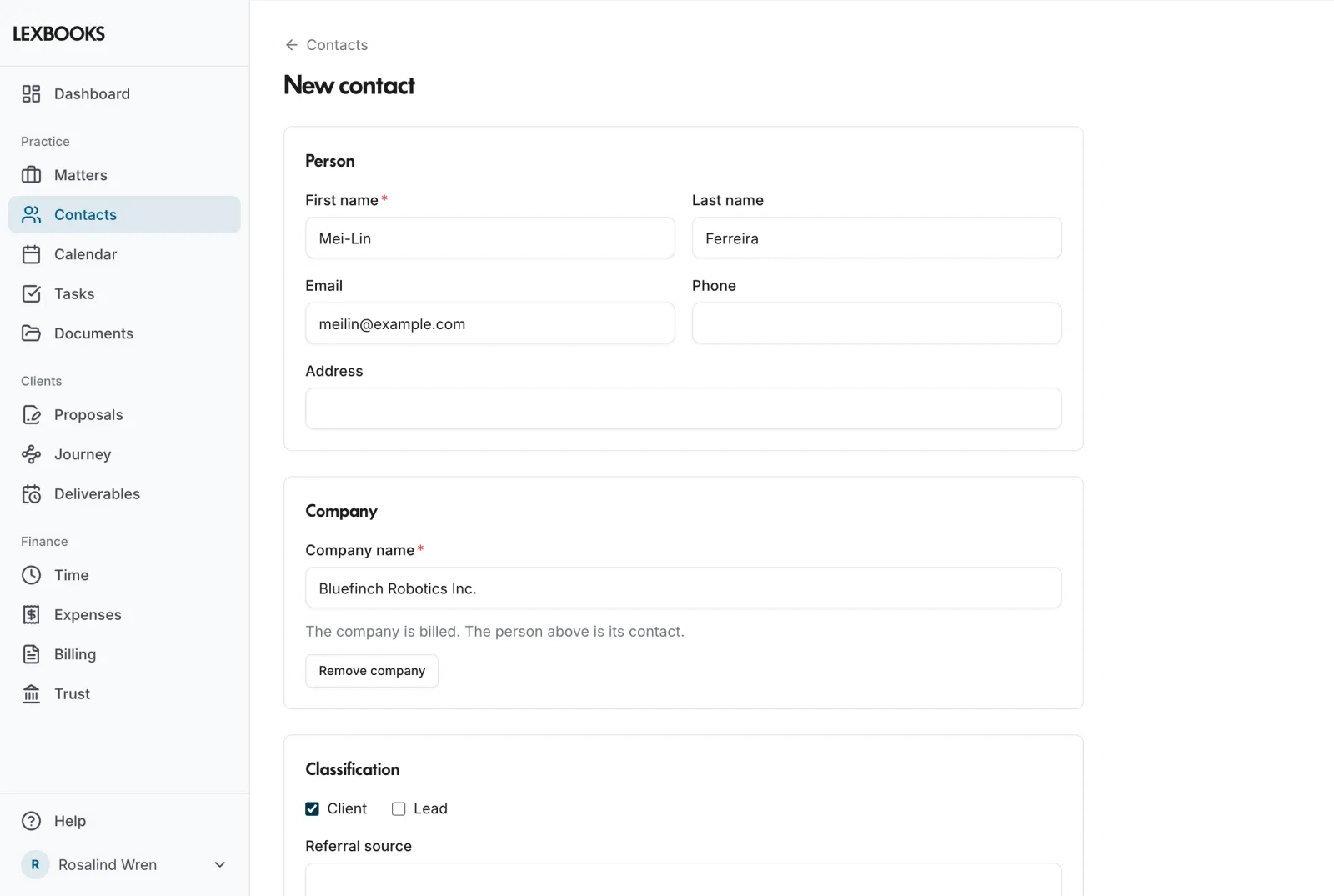
- If you want, note how they found you in Referral source, and anything else in Notes.
- Click Create contact.
What happens next
LexBooks opens the contact's page. From there, click New proposal to prepare a letter for them with the client already chosen (see Send an engagement letter or a proposal). The card Matters lists their matters once you have some.
If something looks wrong
- “Name is required”. Type at least a first name or a last name.
- The contact is missing from the client list of a matter. Open the contact, click Edit, tick Client and click to save.
- “Invalid email”. Check the e-mail address for a missing “@” or a space.