Open and manage a matter yourself
A matter is the file for one piece of work for a client. Your time, expenses, invoices, documents, tasks and dates all hang from it. A matter opens by itself when a client signs a flat-fee letter with pay on acceptance on (see The matter that opens by itself). You can also open one yourself at any time.
Open a matter
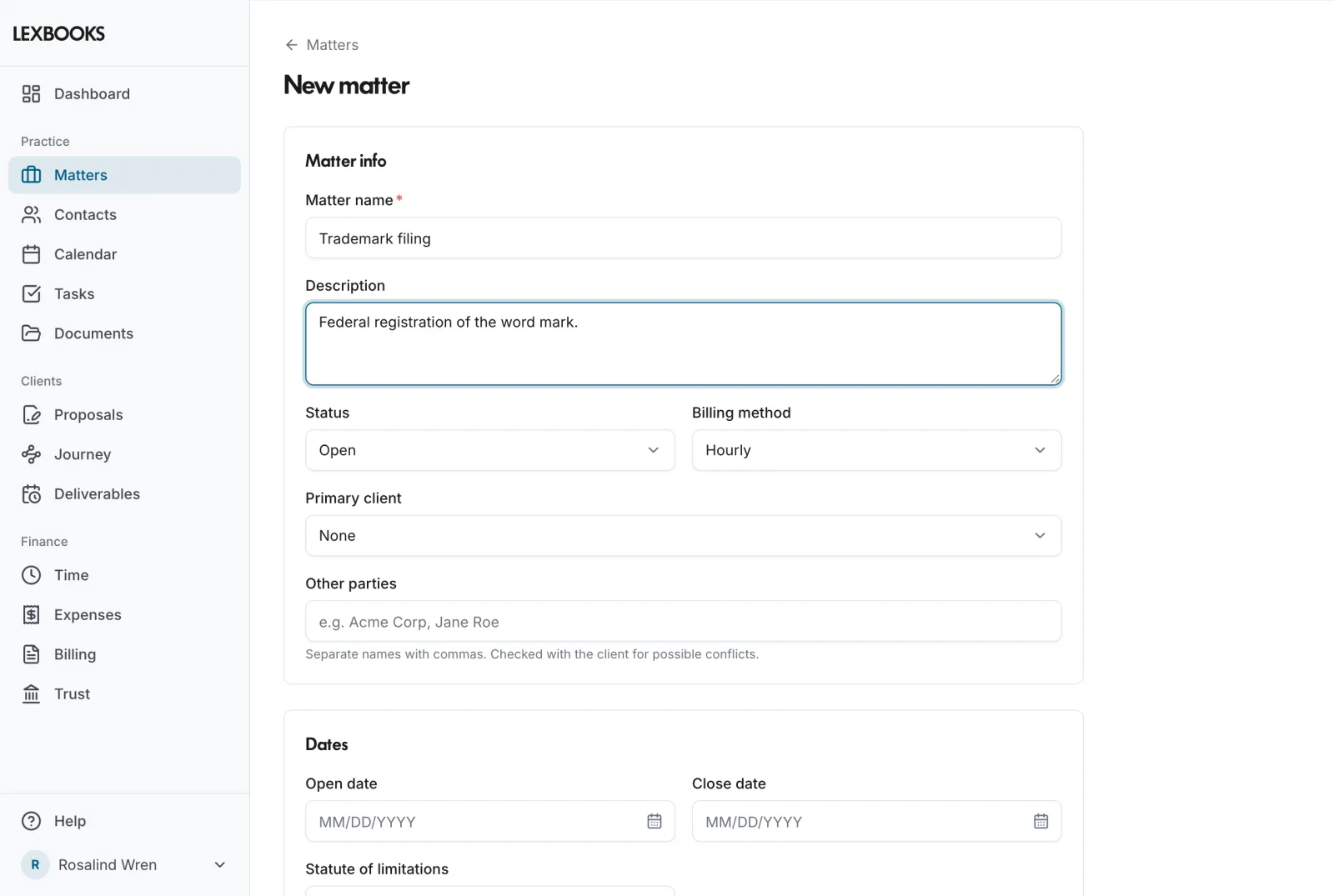
- Click Matters in the left-hand menu.
- Click New matter.
- Type a name in Matter name, for example “Lindqvist v. Harborline” or “Trademark filing”.
- Add a short Description if you want.
- Choose the Status. Choose Open if you are working on it now. You can record time and expenses on any matter that is not archived.
- Choose the Billing method: Hourly, Flat fee, Subscription, Contingency or Pro bono.
- Choose the client in Primary client. Only contacts marked as clients are listed.
- Under Dates, add the Open date and, if there is one, the Statute of limitations.
- Click Create matter.
LexBooks gives the matter a number by itself. You can change the number later on the edit page.
The matter's page
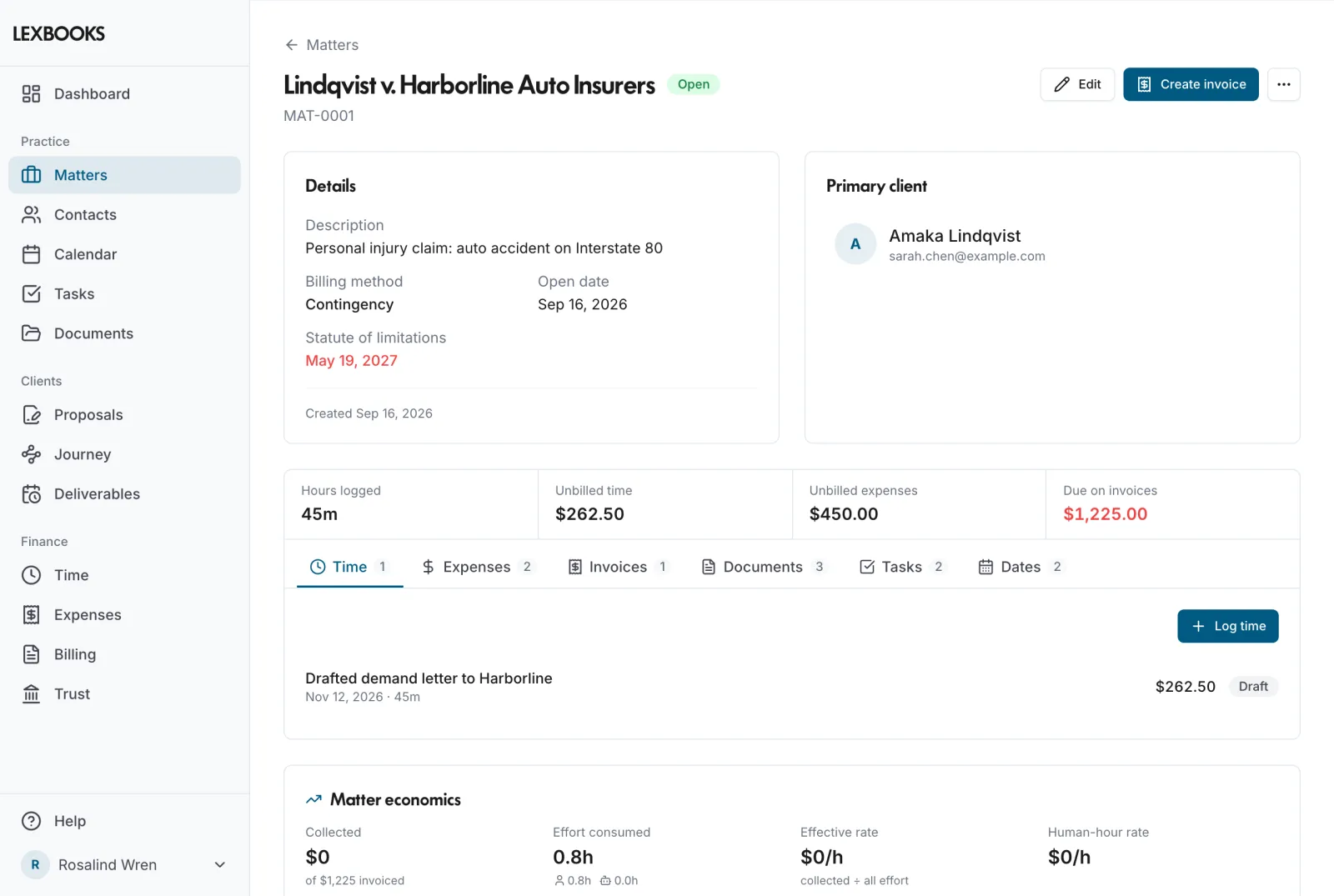
The matter's page shows its details and four figures: hours logged, unbilled time, unbilled expenses and the amount due on invoices. Under them, tabs list the matter's Time, Expenses, Invoices, Documents, Tasks and Dates, each with a button to add one. Click Create invoice at the top to bill the matter.
Change or close a matter
- Open the matter and click Edit.
- Change what you need. To close the matter, set Status to Closed and fill in the Close date.
- Click Save changes.
What happens next
A statute of limitations within 60 days appears on the dashboard under Needs your attention. A matter with the status Closed stays in LexBooks with all its records; use the Closed filter on the Matters page to find it.
If something looks wrong
- The client is not in the Primary client list. Open the contact, click Edit, tick Client, and save.
- You cannot record time on the matter. It is archived. Edit the matter and choose another status.
- “Another matter of your firm already has this number.” Matter numbers are unique in your firm. Choose another number.